| Notes | |||||
|---|---|---|---|---|---|
| Microsoft SQL Server 2000 64-bit Edition | 11/30/2000 | 4/8/2008 | 4/9/2013 | 7/11/2002 | |
| Microsoft SQL Server 2000 Desktop Engine | 11/30/2000 | 4/8/2008 | 4/9/2013 | ||
| Microsoft SQL Server 2000 Desktop Engine Release A | 1/29/2003 | 4/8/2008 | 4/9/2013 | ||
| Microsoft SQL Server 2000 Developer Edition | 11/30/2000 | 4/8/2008 | 4/9/2013 | 7/11/2002 | |
| Microsoft SQL Server 2000 Enterprise Edition | 11/30/2000 | 4/8/2008 | 4/9/2013 | 7/11/2002 | |
| Microsoft SQL Server 2000 Reporting Services Service Pack 1 | 9/22/2004 | Not Applicable | Not Applicable | 7/11/2006 | |
| Microsoft SQL Server 2000 Reporting Services Service Pack 2 | 4/22/2005 | Review Note | Review Note | Support ends 12 months after the next service pack releases or at the end of the product's support lifecycle, whichever comes first. For more information, please see the service pack policy athttp://support.microsoft.com/lifecycle/#ServicePackSupport. | |
| Microsoft SQL Server 2000 Service Pack 1 | 6/12/2001 | Not Applicable | Not Applicable | 2/28/2002 | |
| Microsoft SQL Server 2000 Service Pack 2 | 11/30/2001 | Not Applicable | Not Applicable | 4/7/2003 | |
| Microsoft SQL Server 2000 Service Pack 3a | 1/7/2003 | Not Applicable | Not Applicable | 7/10/2007 | |
| Microsoft SQL Server 2000 Service Pack 4 | 5/6/2005 | Review Note | Review Note | Support ends 12 months after the next service pack releases or at the end of the product's support lifecycle, whichever comes first. For more information, please see the service pack policy athttp://support.microsoft.com/lifecycle/#ServicePackSupport. | |
| Microsoft SQL Server 2000 Standard Edition | 11/30/2000 | 4/8/2008 | 4/9/2013 | 7/11/2002 | |
| Microsoft SQL Server 2000 Windows CE Edition 2.0 | 12/16/2002 | 1/8/2008 | 1/8/2013 | ||
| Microsoft SQL Server 2000 Workgroup Edition | 6/1/2005 | 4/8/2008 | 4/9/2013 | ||
| Microsoft SQL Server 2005 Compact Edition | 2/19/2007 | 4/12/2011 | 4/12/2016 | 7/10/2007 | |
| Microsoft SQL Server 2005 Developer Edition | 1/14/2006 | 4/12/2011 | 4/12/2016 | 7/10/2007 | |
| Microsoft SQL Server 2005 Enterprise Edition | 1/14/2006 | 4/12/2011 | 4/12/2016 | 7/10/2007 | |
| Microsoft SQL Server 2005 Enterprise Edition for Itanium-based Systems | 1/14/2006 | 4/12/2011 | 4/12/2016 | 7/10/2007 | |
| Microsoft SQL Server 2005 Enterprise X64 Edition | 1/14/2006 | 4/12/2011 | 4/12/2016 | 7/10/2007 | |
| Microsoft SQL Server 2005 Express Edition | 6/1/2006 | 4/12/2011 | 4/12/2016 | 7/10/2007 | |
| Microsoft SQL Server 2005 Express Edition with Advanced Services | 7/16/2006 | 4/12/2011 | 4/12/2016 | 7/10/2007 | |
| Microsoft SQL Server 2005 for Embedded Systems | 1/14/2006 | 4/12/2011 | 4/12/2016 | 7/10/2007 | |
| Microsoft SQL Server 2005 Service Pack 1 | 4/18/2006 | Not Applicable | Not Applicable | 4/8/2008 | |
| Microsoft SQL Server 2005 Service Pack 2 | 2/19/2007 | Not Applicable | Not Applicable | 1/12/2010 | |
| Microsoft SQL Server 2005 Service Pack 3 | 12/15/2008 | Not Applicable | Not Applicable | 1/10/2012 | |
| Microsoft SQL Server 2005 Service Pack 4 | 12/13/2010 | Review Note | Review Note | Support ends 12 months after the next service pack releases or at the end of the product's support lifecycle, whichever comes first. For more information, please see the service pack policy athttp://support.microsoft.com/lifecycle/#ServicePackSupport. | |
| Microsoft SQL Server 2005 Standard Edition | 1/14/2006 | 4/12/2011 | 4/12/2016 | 7/10/2007 | |
| Microsoft SQL Server 2005 Standard Edition for Itanium-based Systems | 1/14/2006 | 4/12/2011 | 4/12/2016 | 7/10/2007 | |
| Microsoft SQL Server 2005 Standard X64 Edition | 1/14/2006 | 4/12/2011 | 4/12/2016 | 7/10/2007 | |
| Microsoft SQL Server 2005 Workgroup Edition | 1/14/2006 | 4/12/2011 | 4/12/2016 | 7/10/2007 | |
| Microsoft SQL Server 2008 Developer | 11/6/2008 | 7/8/2014 | 7/9/2019 | 4/13/2010 | |
| Microsoft SQL Server 2008 Enterprise | 11/7/2008 | 7/8/2014 | 7/9/2019 | 4/13/2010 | |
| Microsoft SQL Server 2008 Express | 11/11/2008 | 7/8/2014 | 7/9/2019 | 4/13/2010 | |
| Microsoft SQL Server 2008 Express with Advanced Services | 11/22/2008 | 7/8/2014 | 7/9/2019 | 4/13/2010 | |
| Microsoft SQL Server 2008 R2 Datacenter | 7/20/2010 | 7/8/2014 | 7/9/2019 | 7/10/2012 | |
| Microsoft SQL Server 2008 R2 Developer | 7/20/2010 | 7/8/2014 | 7/9/2019 | 7/10/2012 | |
| Microsoft SQL Server 2008 R2 Enterprise | 7/20/2010 | 7/8/2014 | 7/9/2019 | 7/10/2012 | |
| Microsoft SQL Server 2008 R2 Express | 7/20/2010 | 7/8/2014 | 7/9/2019 | 7/10/2012 | |
| Microsoft SQL Server 2008 R2 Express with Advanced Services | 7/20/2010 | 7/8/2014 | 7/9/2019 | 7/10/2012 | |
| Microsoft SQL Server 2008 R2 for Embedded Systems | 7/20/2010 | 7/8/2014 | 7/9/2019 | 7/10/2012 | |
| Microsoft SQL Server 2008 R2 Parallel Data Warehouse | 11/9/2010 | 7/8/2014 | 7/9/2019 | Hardware products will receive 5 years of support following Microsoft’s end of sales date for the Major Product version. Minor Product releases follow the Support Lifecycle of their respective Major Product versions. | |
| Microsoft SQL Server 2008 R2 Service Pack 1 | 7/12/2011 | Not Applicable | Not Applicable | 10/8/2013 | |
| Microsoft SQL Server 2008 R2 Service Pack 2 | 7/26/2012 | Not Applicable | Not Applicable | 10/13/2015 | |
| Microsoft SQL Server 2008 R2 Service Pack 3 | 9/26/2014 | Review Note | Review Note | Support ends 12 months after the next service pack releases or at the end of the product's support lifecycle, whichever comes first. For more information, please see the service pack policy athttp://support.microsoft.com/lifecycle/#ServicePackSupport. | |
| Microsoft SQL Server 2008 R2 Standard | 7/20/2010 | 7/8/2014 | 7/9/2019 | 7/10/2012 | |
| Microsoft SQL Server 2008 R2 Standard Edition for Small Business | 7/20/2010 | 7/8/2014 | 7/9/2019 | 7/10/2012 | |
| Microsoft SQL Server 2008 R2 Web | 7/20/2010 | 7/8/2014 | 7/9/2019 | 7/10/2012 | |
| Microsoft SQL Server 2008 R2 Workgroup | 7/20/2010 | 7/8/2014 | 7/9/2019 | 7/10/2012 | |
| Microsoft SQL Server 2008 Service Pack 1 | 3/31/2009 | Not Applicable | Not Applicable | 10/11/2011 | |
| Microsoft SQL Server 2008 Service Pack 2 | 9/24/2010 | Not Applicable | Not Applicable | 10/9/2012 | |
| Microsoft SQL Server 2008 Service Pack 3 | 10/6/2011 | Not Applicable | Not Applicable | 10/13/2015 | |
| Microsoft SQL Server 2008 Service Pack 4 | 9/30/2014 | Review Note | Review Note | Support ends 12 months after the next service pack releases or at the end of the product's support lifecycle, whichever comes first. For more information, please see the service pack policy athttp://support.microsoft.com/lifecycle/#ServicePackSupport. | |
| Microsoft SQL Server 2008 Standard | 11/6/2008 | 7/8/2014 | 7/9/2019 | 4/13/2010 | |
| Microsoft SQL Server 2008 Standard Edition for Small Business | 11/6/2008 | 7/8/2014 | 7/9/2019 | 4/13/2010 | |
| Microsoft SQL Server 2008 Web | 11/6/2008 | 7/8/2014 | 7/9/2019 | 4/13/2010 | |
| Microsoft SQL Server 2008 Workgroup | 11/6/2008 | 7/8/2014 | 7/9/2019 | 4/13/2010 | |
| Microsoft SQL Server 2012 Business Intelligence | 5/20/2012 | 7/11/2017 | 7/12/2022 | 1/14/2014 | |
| Microsoft SQL Server 2012 Developer | 5/20/2012 | 7/11/2017 | 7/12/2022 | 1/14/2014 | |
| Microsoft SQL Server 2012 Enterprise | 5/20/2012 | 7/11/2017 | 7/12/2022 | 1/14/2014 | |
| Microsoft SQL Server 2012 Express | 5/20/2012 | 7/11/2017 | 7/12/2022 | 1/14/2014 | |
| Microsoft SQL Server 2012 for Embedded Systems | 5/20/2012 | 7/11/2017 | 7/12/2022 | 1/14/2014 | |
| Microsoft SQL Server 2012 Parallel Data Warehouse | 7/12/2013 | 10/9/2018 | Review Note | SQL 2012 PDW appliance hardware and the server software configured and running on the appliance hardware shall receive five years of support from General Availability of SQL Server Parallel Data Warehouse 2012. | |
| Microsoft SQL Server 2012 Service Pack 1 | 11/7/2012 | Not Applicable | Not Applicable | 7/14/2015 | |
| Microsoft SQL Server 2012 Service Pack 2 | 6/10/2014 | Review Note | Review Note | Support ends 12 months after the next service pack releases or at the end of the product's support lifecycle, whichever comes first. For more information, please see the service pack policy athttp://support.microsoft.com/lifecycle/#ServicePackSupport. | |
| Microsoft SQL Server 2012 Standard | 5/20/2012 | 7/11/2017 | 7/12/2022 | 1/14/2014 | Support ends 12 months after the next service pack releases or at the end of the product's support lifecycle, whichever comes first. For more information, please see the service pack policy athttp://support.microsoft.com/lifecycle/#ServicePackSupport. |
| Microsoft SQL Server 2012 Web | 5/20/2012 | 7/11/2017 | 7/12/2022 | 1/14/2014 | |
| Microsoft SQL Server 2014 Business Intelligence | 6/5/2014 | 7/9/2019 | 7/9/2024 | 7/12/2016 | |
| Microsoft SQL Server 2014 Developer | 6/5/2014 | 7/9/2019 | 7/9/2024 | 7/12/2016 | |
| Microsoft SQL Server 2014 Enterprise | 6/5/2014 | 7/9/2019 | 7/9/2024 | 7/12/2016 | |
| Microsoft SQL Server 2014 Enterprise Core | 6/5/2014 | 7/9/2019 | 7/9/2024 | 7/12/2016 | |
| Microsoft SQL Server 2014 Express | 6/5/2014 | 7/9/2019 | 7/9/2024 | 7/12/2016 | |
| Microsoft SQL Server 2014 Service Pack 1 | 4/14/2015 | Review Note | Review Note | Support ends 12 months after the next service pack releases or at the end of the product's support lifecycle, whichever comes first. For more information, please see the service pack policy athttp://support.microsoft.com/lifecycle/#ServicePackSupport. | |
| Microsoft SQL Server 2014 Standard | 6/5/2014 | 7/9/2019 | 7/9/2024 | 7/12/2016 | |
| Microsoft SQL Server 2014 Web | 6/5/2014 | 7/9/2019 | 7/9/2024 | 7/12/2016 | |
| Microsoft SQL Server 4.2 for OS/2 | Not Available | 7/1/1999 | Not Applicable | ||
| Microsoft SQL Server 6.0 Standard Edition | Not Available | 3/31/1999 | Not Applicable | ||
| Microsoft SQL Server 6.5 Enterprise Edition | 3/1/1998 | 3/31/2004 | Not Applicable | ||
| Microsoft SQL Server 6.5 Service Pack 1 | 12/31/1998 | Not Applicable | Not Applicable | 1/1/2002 | |
| Microsoft SQL Server 6.5 Service Pack 2 | 9/15/2000 | Not Applicable | Not Applicable | ||
| Microsoft SQL Server 6.5 Service Pack 3 | 1/15/2000 | Not Applicable | Not Applicable | ||
| Microsoft SQL Server 6.5 Service Pack 4 | Not Available | Not Applicable | Not Applicable | 3/24/1999 | |
| Microsoft SQL Server 6.5 Service Pack 5a | 12/24/1998 | Not Applicable | Not Applicable | 3/31/2004 | |
| Microsoft SQL Server 6.5 Standard Edition | 6/30/1996 | 1/1/2002 | Not Applicable | ||
| Microsoft SQL Server 7.0 Enterprise Edition | 3/1/1999 | 12/31/2005 | 1/11/2011 | ||
| Microsoft SQL Server 7.0 Service Pack 1 | 5/25/1999 | Not Applicable | Not Applicable | 3/31/2004 | |
| Microsoft SQL Server 7.0 Service Pack 2 | 3/20/2000 | Not Applicable | Not Applicable | ||
| Microsoft SQL Server 7.0 Service Pack 3 | Not Available | Not Applicable | Not Applicable | 7/26/2002 | |
| Microsoft SQL Server 7.0 Service Pack 4 | 4/26/2002 | Review Note | Review Note | Support ends 12 months after the next service pack releases or at the end of the product's support lifecycle, whichever comes first. For more information, please see the service pack policy athttp://support.microsoft.com/lifecycle/#ServicePackSupport. | |
| Microsoft SQL Server 7.0 Standard Edition | 3/1/1999 | 12/31/2005 | 1/11/2011 | ||
| Microsoft SQL Server Compact 3.5 | 2/19/2008 | 4/9/2013 | 4/10/2018 | 10/13/2009 | |
| Microsoft SQL Server Compact 3.5 Service Pack 1 for Windows Mobile | 8/11/2008 | Not Applicable | Not Applicable | 7/12/2011 | |
| Microsoft SQL Server Compact 3.5 Service Pack 2 | 6/29/2010 | Review Note | Review Note | Support ends 12 months after the next service pack releases or at the end of the product's support lifecycle, whichever comes first. For more information, please see the service pack policy athttp://support.microsoft.com/lifecycle/#ServicePackSupport. | |
| Microsoft SQL Server Compact 4.0 | 4/13/2011 | 7/12/2016 | 7/13/2021 | ||
| Microsoft SQL Server Notification Services 2.0 Enterprise Edition | 11/26/2002 | 1/8/2008 | 1/8/2013 | ||
| Microsoft SQL Server Notification Services 2.0 Standard Edition | 11/26/2002 | 1/8/2008 | 1/8/2013 | ||
| SQL Server 2012 Enterprise Core | 5/20/2012 | 7/11/2017 | 7/12/2022 |
Friday, 24 April 2015
Microsoft Support Lifecycle
https://support.microsoft.com/en-us/lifecycle/search/default.aspx?sort=PN&alpha=sql%20server&Filter=FilterNO

Tuesday, 17 March 2015
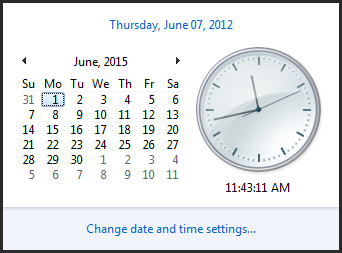 Microsoft Dynamics CRM Date and Time can be very confusing and challenging to work with, especially in scheduling applications. We have solved several challenges with DateTimes and time zones in both CRM Forms and custom portals.
A few CRM Date and Time truths that we have learned along the way:
- CRM DateTime always comes with time component. There is a setting in creating a DateTime field that defines date only, but all that does is default the time to midnight local time
- DateTime is saved in database as UTC time
- DateTime in CRM UI is always shown based on user’s local time zone. This is true even if UI is only showing the date component. This leads to following effect:
- If user in CST enters contact’s birthdate as 2/2/1980, this is saved as 2/2/1980 05:00 in DB
- If user in PST views the contact record, he/she will see the birthdate as 2/1/1980 (because local time for the user will be 2/1/1980 22:00)
- DateTime retrieved through CRM Web Services is always UTC time
- DateTime set through CRM Web Services is user’s local time zone by default
- Note that extra care must be taken to understand whether the call is done with the calling user or a service user
- DateTime set through CRM Web Services can be defined to be UTC instead
- DateTime queried directly from SQL table or base view returns UTC
- DateTime queried from filtered view returns users local time
https://www.powerobjects.com/blog/2012/06/07/crm-2011-truths-about-datetime/
Friday, 28 November 2014
Monday, 2 June 2014
Sync Server 2008 R2 with NTP
# Sync Server 2008 R2 with NTP
# ----------------------------
net stop w32time
w32tm /config /syncfromflags:manual /manualpeerlist:"ip-address"
w32tm /config /reliable:yes
net start w32time
# ----------------------------
net stop w32time
w32tm /config /syncfromflags:manual /manualpeerlist:"ip-address"
w32tm /config /reliable:yes
net start w32time
Wednesday, 9 April 2014
Maximum Size of Solution to Import
Maximum Size of Solution to Import
For Microsoft Dynamics CRM Online the maximum size for a solution is 29.296 MB.
For on-premises Microsoft Dynamics CRM 2011, the default maximum size for a solution is 6 MB but this can be increased as needed.
Change the maximum allowed size by editing the <httpRuntime> element in the web.config file for the application. Edit the executionTimeout and maxRequestLengthattributes to allow for the necessary size. After you finish installing the solution you can set it to the size you want.
SSRS - customer URL Click thru
iif(
(
(iif(Fields!customeridEntityName.Value is nothing, 0, 1) +
iif(Parameters!CRM_URL.Value is nothing, 0, iif(Parameters!CRM_URL.Value = "",0,1))) <> 2),
System.DBNull.Value,
iif(Fields!customeridEntityName.Value = "account",
Parameters!CRM_URL.Value & "?OTC=1&ID={"& Fields!customerid.Value.ToString() &"}",
iif(Fields!customeridEntityName.Value = "contact",
Parameters!CRM_URL.Value & "?OTC=2&ID={"& Fields!customerid.Value.ToString() &"}",
System.DBNull.Value)
)
)
(
(iif(Fields!customeridEntityName.Value is nothing, 0, 1) +
iif(Parameters!CRM_URL.Value is nothing, 0, iif(Parameters!CRM_URL.Value = "",0,1))) <> 2),
System.DBNull.Value,
iif(Fields!customeridEntityName.Value = "account",
Parameters!CRM_URL.Value & "?OTC=1&ID={"& Fields!customerid.Value.ToString() &"}",
iif(Fields!customeridEntityName.Value = "contact",
Parameters!CRM_URL.Value & "?OTC=2&ID={"& Fields!customerid.Value.ToString() &"}",
System.DBNull.Value)
)
)
Thursday, 27 March 2014
CRM 2011/2013 - SSRS Report Drill Through
iif(
(
(iif(Fields!customeridEntityName.Value is nothing, 0, 1) +
iif(Parameters!CRM_URL.Value is nothing, 0, iif(Parameters!CRM_URL.Value = "",0,1))) <> 2),
System.DBNull.Value,
iif(Fields!customeridEntityName.Value = "account",
Parameters!CRM_URL.Value & "?OTC=1&ID={"& Fields!customerid.Value.ToString() &"}",
iif(Fields!customeridEntityName.Value = "contact",
Parameters!CRM_URL.Value & "?OTC=2&ID={"& Fields!customerid.Value.ToString() &"}",
System.DBNull.Value)
)
)
(
(iif(Fields!customeridEntityName.Value is nothing, 0, 1) +
iif(Parameters!CRM_URL.Value is nothing, 0, iif(Parameters!CRM_URL.Value = "",0,1))) <> 2),
System.DBNull.Value,
iif(Fields!customeridEntityName.Value = "account",
Parameters!CRM_URL.Value & "?OTC=1&ID={"& Fields!customerid.Value.ToString() &"}",
iif(Fields!customeridEntityName.Value = "contact",
Parameters!CRM_URL.Value & "?OTC=2&ID={"& Fields!customerid.Value.ToString() &"}",
System.DBNull.Value)
)
)
Subscribe to:
Posts (Atom)